
How To Prepare Your CSV File For Importing
There are several steps you will need to take to prepare your CSV file for Importing into CSS Checking
The fields in the CSV file need to Match the fields in the CSS Checking Database
First the Headings should be the same as the Database (This is not absolutely necessary, it just makes it easier to 'Map' the fields)
Sample Initial Downloaded CSV file from Pioneer Bank

CSS Checking Data Fields

Here are the steps you need to take to Prepare the QXF file from the Bank for Importing
Step 1
Export QXF file from Bank
Step 2 Import QXF file into Metalogic
Assign Categories
Export as Transactions -Date-categories.csv
This is the final file from Metalogic, it has to be Exported to CSV before Importing into CSS Checking

You can now Close Metalogic as the rest of the editing will be in a spreadsheet like Excel
Step 3 Open Date-categories.csv in Excel
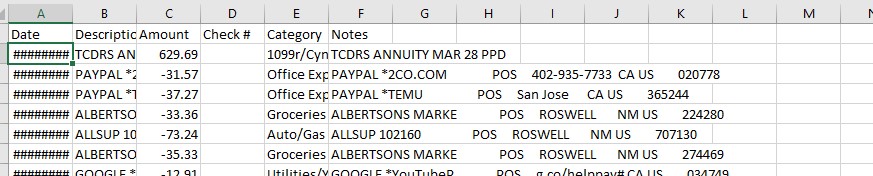
At this point the Metalogic file contains ALL of the data you have ever Imported into Metalogic
This is a problem, in my case the data went all the back to 2021.
So to correct this you will want to Delete all of the records which do not match the month on which you want to include in the Import file.
To do this format the Date Field.
The Date Field needs to be in the MM/DD/YYYY format, the easiest way to do this is with Microsoft Excel©
Select the Date Column then Format Cells as Date, click OK
To do this Highlight all of the Records, then Data Sort by Date Acesending
Go through all of the records prior to the month you want to keep and delete them.
This Fixed File Needs the following Heading Field ID

Insert a Column A enter a number is Cell A2 for example the number 20230201 would represent February 1 2023 the number 20240201 is February1 2024
In Cell A3 enter the formula to add 1 to Cell A2, copy cell A3 to the end of the records.
This way each record will have a unique Record ID and there will be no duplicates.
Add ID
Format Date, then sort by Date
Then add ID Data
Sort by Column D (Amount)
All of the Deposits will be listed at the bottom of the file
Cut and Copy them to Column E (Deposit
Then Save in Excel as CSV
Import into CSS Checking
IGNORE Duplicates
Here is how the fields should be mapped
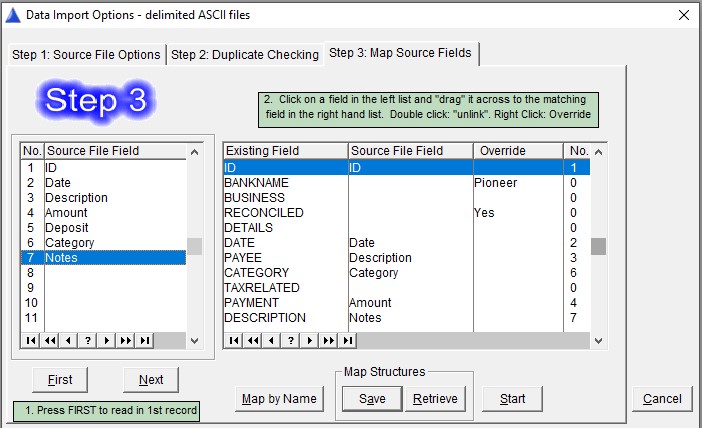
If you did not change the Headings in the Spreadsheet file you will Map the fields this way.
Bankname to add a bank name Right Click on the Override field and enter the bank's name
Same this for Reconciled
Description = Payee
Amount = Payment
Notes = Description